

Google Chrome is a leading, trustworthy web browser, but some errors can leave you scratching your head. One of them is the ERR_FILE_NOT_FOUND error. Unlike issues triggered by inconsistent internet connectivity, this one suggests that Chrome tries to load a file but can’t detect it where it expects it to be.
If you see the ERR_FILE_NOT_FOUND error, don’t worry. Whether you’re browsing the internet or doing something highly important online, this HTTP error is easy to track and fix.
This blog post will describe what the ERR_FILE_NOT_FOUND error means, why it appears, and how you can bypass this error to get your Chrome browser up and running.
What Do You Mean By the ERR_FILE_NOT_FOUND Error?
You may face or experience the ERR_FILE_NOT_FOUND error as an HTTP error message on your screen while browsing the web. According to this error, the browser is unable to identify a particular file or resource. As a result, Chrome points out that it is difficult to detect a file that has been moved or removed.
Primary Causes Behind the ERR_FILE_NOT_FOUND Error
As you may be aware, issues with Chrome extensions often cause the ERR_FILE_NOT_FOUND error in Google Chrome. Unfortunately, extensions can cause errors when visiting certain sites if they interact unexpectedly with those sites, prompting Chrome to display errors.
Extensions, like any other tool or software, can contain bugs. Additionally, using multiple extensions simultaneously can sometimes create compatibility problems. Similarly, failing to update extensions may lead to errors such as ERR_FILE_NOT_FOUND in Chrome.
How to Fix the ERR-FILE_NOT_FOUND Error in Google Chrome?
You can use multiple methods to troubleshoot the ERR_FILE_NOT_FOUND error. These various workarounds are:
- Deactivate Your Chrome Extensions.
- Clear Persisting Extensions from the User Data Folder.
- Reset Your Chrome Browser.
Deactivate Your Chrome Extensions
Sometimes, deactivating Chrome extensions can help you bypass the ERR_FILE_NOT_FOUND error. If any of your installed Chrome extensions become corrupted, it can result in the ERR_FILE_NOT_FOUND error. Thus, you should consider disabling Chrome extensions to avoid this HTTP error.
To deactivate Chrome extensions, follow the steps below:
- Press the three dots available at the top-right corner of your web browser.
- Go to the “Extensions” option and click the “Manage Extensions” option.
- Now, you can access all your configured extensions. To begin disabling extensions one by one, toggle the disable option.

Once you complete this process, remember to refresh your web browser to see if the ERR_FILE_NOT_FOUND error has gone away.
Remove Persisting Extensions from the User Data Folder
If you want to overcome the ERR_FILE_NOT_FOUND error, try removing persistent extensions from the user data folder.
For that reason, check whether the disabled extensions have left any files behind. As you know, software saves files on users’ devices, such as desktops, after deactivation.
Chrome stores files on Windows in the Chrome > User Data > Default > Extensions directory, which resides inside the local user’s AppData folder. At times, it becomes difficult to detect the directory because it is not visible.
So, you should open the Windows Run Window to execute this task. To do this, click the Windows + R keys. Once you open the window, write the address below into it:
%LOCALAPPDATA%\Google\Chrome\User Data\Default\Extensions
Click the OK button to view the Chrome extensions folder on your screen. However, it is difficult to identify the Chrome extensions by name. Each folder corresponds to an extension, allowing you to easily identify it by opening the corresponding folder. You can also search for the manifest.json file or the extension icon to detect the extension.
You can open the manifest.json file in each folder and verify the extension name it relates to at the top of the file. You should identify the folder corresponding to the extensions you removed previously. You should access the extensions directory once you uninstall the software and sort folders by modification date.
The last folder that should be modified must correspond to the extension you recently removed. If it does not and you are unable to locate the corresponding folders, the extension has not left any files behind.
If the ERR_FILE_NOT_FOUND error still persists, consider resetting your Chrome browser.
Reset Your Chrome Browser
If you can’t resolve the error despite disabling extensions, you should use the Chrome reset option to return the browser to its default settings. This helps deactivate all extensions and remove all temporary data, such as cookies and cached files.
To do this, visit the Chrome Settings menu and choose the Reset and clean up option. Click Restore settings to their original defaults, and Chrome will need your feedback on whether you want to reset Chrome:
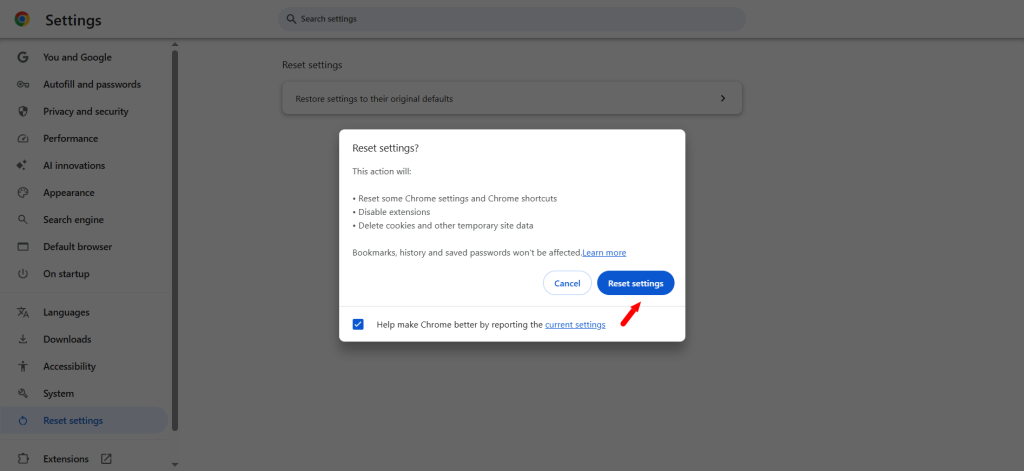
Remember that history, bookmarks, and saved passwords will not be affected once you validate the reset. After you finish the comprehensive Chrome reset process, we hope you will not experience the ERR_FILE_NOT_FOUND error.
How to Secure Your Chrome Browser From the ERR_FILE_NOT_FOUND Error?
When securing Chrome from the ERR_FILE_NOT_FOUND error, consider following several helpful workarounds, including:
- Update Extensions Regularly.
- Ensure that Extensions are Compatible.
- Manage File Paths and Resources.
Update Extensions Regularly
To avoid this HTTP error in the future, update your extensions regularly. Doing so helps you proactively avoid numerous errors caused by out-of-date or missing files.
Ensure that Extensions are Compatible
All extensions should work well with Chrome’s latest version. If an extension needs an update or is outdated, you may encounter a “file not found” error. In simple words, your extensions must be compatible with Chrome.
Manage File Paths and Resources
When you create and maintain a website, ensure that file paths are correct, and you can easily access necessary resources as needed.
In reality, improper file paths and missing resources can cause the ERR_FILE_NOT_FOUND error. It is your responsibility to confirm that all scripts, stylesheets, resources, and links work correctly.
What Do You Mean By ERR_FILE_NOT_FOUND in JavaScript?
Sadly, users can experience this irritating HTTP error in JavaScript when a script tries to access a file that has been moved or doesn’t exist. Similarly, the FILE_NOT_FOUND error appears in JavaScript when a script attempts to evaluate an HTML page.
Besides, several issues can trigger this error, such as incorrect file paths, file permission issues, missing files on the server, and more.
Wrapping Up
We hope you will appreciate our blog post that explains how to fix the ERR_FILE_NOT_FOUND error in Google Chrome. Usually, problems associated with Chrome extensions trigger this error. Hence, you should troubleshoot your Chrome browser to see if this is the case.
Try deactivating Chrome extensions, which can help you get rid of this annoying error. If it doesn’t offer the desired results, consider resetting Chrome to its default settings.
FAQs
Can malware cause an ERR_FILE_NOT_FOUND error in Chrome?
Unfortunately, malware or malicious browser extensions can result in the ERR_FILE_NOT_FOUND error in Chrome. This can occur if a malicious extension was improperly removed or if core browser files were modified, leaving behind scripts or configuration files.
Do I need to reinstall Chrome?
Yes, you can reinstall Chrome, but before that, you should consider deactivating extensions. Likewise, clearing leftover files is a possible solution before you do a full reinstall.
Why do developers regularly see this error?
Developers encounter this error during development, as even a small typo in file paths, missing resources, or misconfigured extensions can cause it.
Does this error indicate that my internet is down?
No, it is not the case, as issues with Chrome extensions usually trigger the “file not found” error. You should not blame your internet connection for this issue.
Does the FILE_NOT_FOUND error appear in other browsers?
The ERR_FILE_NOT_FOUND error message usually appears in Chromium-based browsers, including Microsoft Edge, Google Chrome, and Opera. Users will see different versions of this error while using browsers such as Safari or Firefox (e.g., “Firefox can’t find the file” or a generic “Server not found” message).