
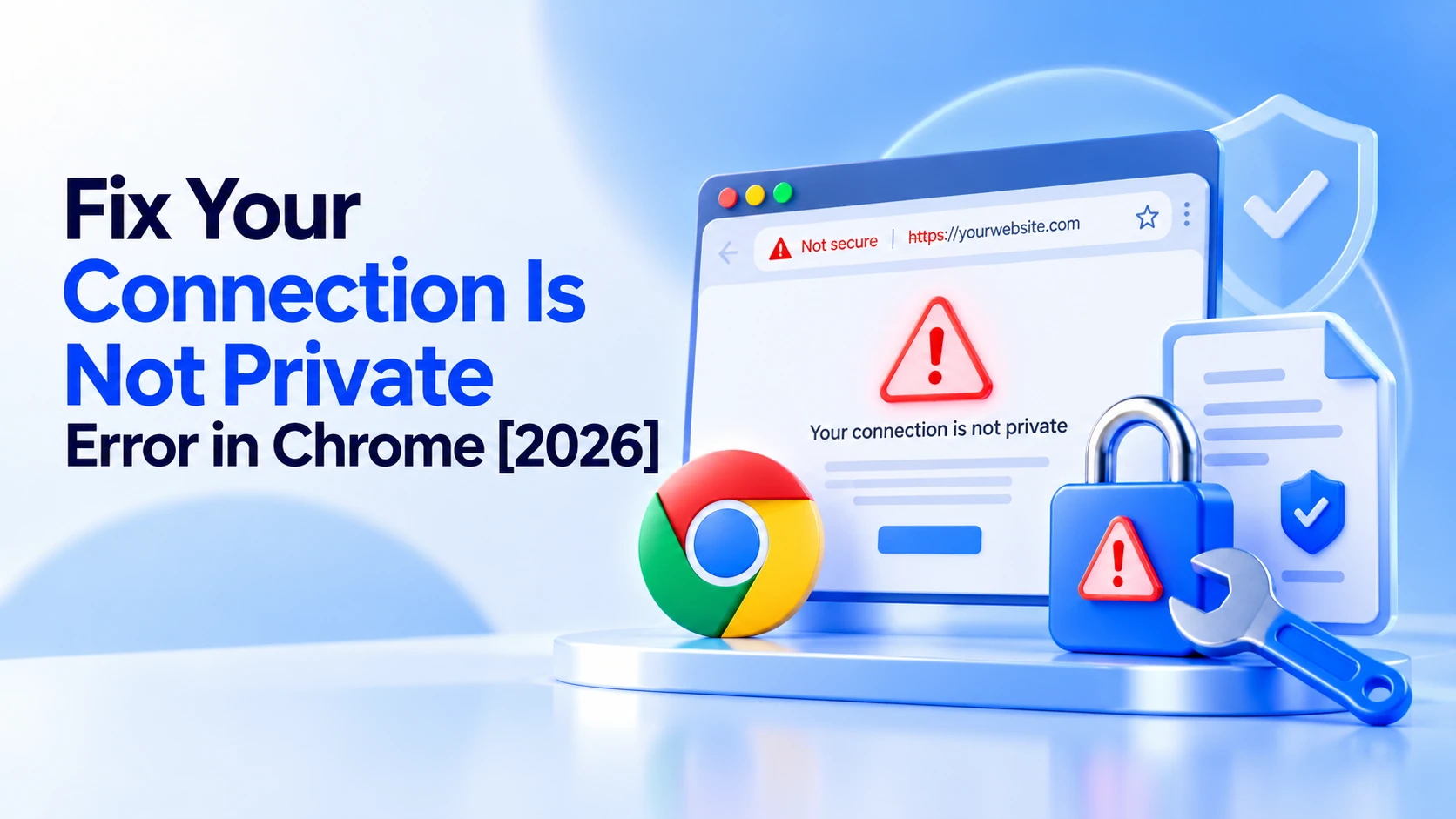
When a web browser like Chrome cannot confirm a site’s security, it displays the error message: “Your connection is not private.” If you ignore this error and open the site, you risk compromising the security of your device.
So, you need to know how to bypass the “Your connection is not private” error in Chrome. This blog post explains potential causes of this SSL error and how to resolve it.
What Do You Mean by the ” Your Connection is Not Private” Error?
As we discussed, the “Your connection is not private” error appears when your browser can’t verify a website’s security.
This can happen for several reasons, like an invalid or expired SSL certificate, antivirus software running an SSL scan, or simply an improper internet connection.
Reasons Behind Your Connection Is Not Private Error in Chrome
Several issues can cause or trigger the “your connection is not private” error. As a consequence, users may have difficulty visiting their preferred sites. These possible issues include:
- Invalid or Expired SSL/TLS Certificate.
- Incorrect Date/Time Settings.
- DNS Errors.
- Public Wi-Fi Networks.
- Browser Cache and Cookies Settings.
- Firewall or Antivirus Program.
- Browser Issues like Outdated Extensions, Corrupted Cache, etc.
What Should We Do to Fix the “Your Connection Is Not Private” Error in Chrome?
You can use several troubleshooting methods to fix the “Your connection is not private” error. These methods are easy to follow and effective. These troubleshooting methods include:
- Reload the Page.
- Update Your Operating System.
- Check Your Computer’s Clock.
- Try Incognito Mode.
- Clear Browser Cache and Cookies.
- Restart Your Computer.
- Check the Browser Extensions.
- Reinstall a Web Browser.
- Deactivate HTTPS/SSL Scanning Setting.
- Clear the Windows SSL State.
- Deactivate VPN and Proxy Servers.
- Double-Check the URL.
Reload the Page
Sometimes, reloading the page helps avoid this irritating SSL error. Close your web browser and reopen it. Once the browser is open, reload the page. This can help resolve the “Your connection isn’t private” error.
Update Your Operating System
Beyond reloading the page, update your operating system if you haven’t updated it recently. Unfortunately, older operating systems don’t support the latest technologies, such as TLS 1.3. Similarly, older operating systems may not support the latest web browsers.
In short, whether you use Windows, Mac, or another operating system, keep your devices up to date.
Check Your Computer’s Clock
Your computer’s clock is likely incorrect. As a result, you may see the “your connection is not private” error. Web browsers rely on your computer’s clock to authenticate SSL certificates.
If you have bought a new device, especially a laptop, for the first time, you may see the “your connection is not secure” error. To update the time on your Windows device, follow the steps below:
- Right-click the time in the bottom-right task tray and choose “Adjust date/time.”
- Select the ‘Set time automatically’ option. Also, you can choose the ‘Set time zone automatically’ option if needed. This will allow you to update the date and time from one of Microsoft’s NTP servers. You can check the time in the bottom-right task tray.
- Close the browser, then reopen it after a few minutes.
You can now likely visit your preferred website. Once you update the date and time on your device, you should be able to access the site easily.
Try Incognito Mode
You can fix the “your connection is not private” error by opening an incognito window. You do not need to clear your cache or check your Chrome extensions before following this potential solution.
In Google Chrome, incognito mode is termed “New Incognito Window.” In Mozilla Firefox, it is called a “New private window.” In Microsoft Edge, it is called a “New InPrivate Window.”
Clear Browser Cache and Cookies
Clearing browser cache and cookies can help fix this annoying SSL error. To clear the browser cache and cookies, follow the steps below:
- Click the three dots in the top-right corner of your browser to access the settings panel. Then click Delete browsing data.
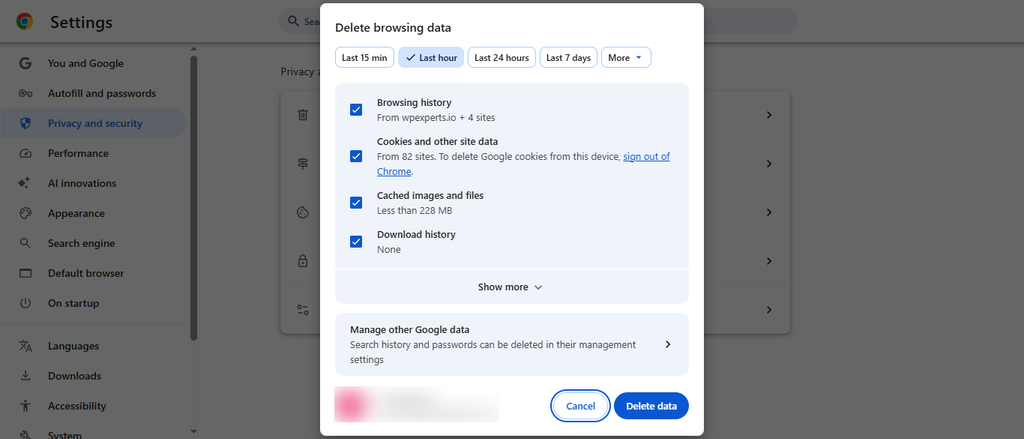
- Choose options like Browsing history, Cookies and other site data, and Cached images and files. Press the Delete data option to resolve the “Your connection is not private” error.
Restart Your Computer
Restarting your computer can sometimes provide peace of mind by eliminating the “connection is not private” error. If none of the above potential solutions work, restart your computer and router. This lets you reboot your device and clear the temporary cache.
Check the Browser Extensions
Start by deactivating all extensions to see if they are the main cause. In the Chrome menu, click the three dots, then go to Extensions > Manage Extensions.
To disable them, uncheck the toggle for each one. Deactivate all extensions; this is crucial to identify the culprit.

Then, open the page again. If the error no longer appears, you just need to find the extension causing it. Turn on the installed extensions one by one and check whether the problematic site is accessible after each one.
Restore Browser Settings
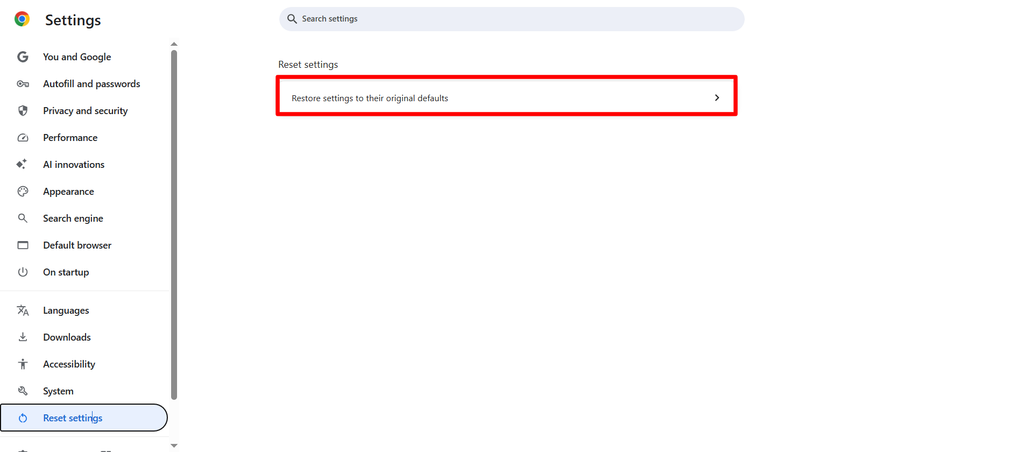
To fix the “Your Connection is Not Private” error, reset your browser settings to their defaults. Using the desktop version of Google Chrome, visit Settings > Reset settings and click the “Reset settings to their original defaults” option. This should eliminate the error.
Reinstall a Web Browser
Reinstalling a web browser may also help resolve the issue. To avoid starting from scratch, save the pages you need in your bookmarks. It’s also a good idea to turn on synchronization. Use this method as a last resort after trying other solutions.
Deactivate HTTPS/SSL Scanning Setting
To fix the “Your connection is not private” error, consider turning off the HTTPS/SSL scanning setting provided in your antivirus software. Instead of disabling the entire antivirus software, turning off only this setting can help avoid the error.
You can find this setting in Web Protection, Network Protection, or Encrypted Connections, based on your antivirus. Once you deactivate it, reload the site to see if this error disappears. If it does, the setting was the culprit.
Clear the Windows SSL State
Corrupted cached data on your Windows device can cause the “Your connection is not private” error. Therefore, you must clear the Windows SSL state.
To do this, open the Windows Start menu, type “Internet Options”, press Enter, go to the Content tab, and click “Clear SSL state”.
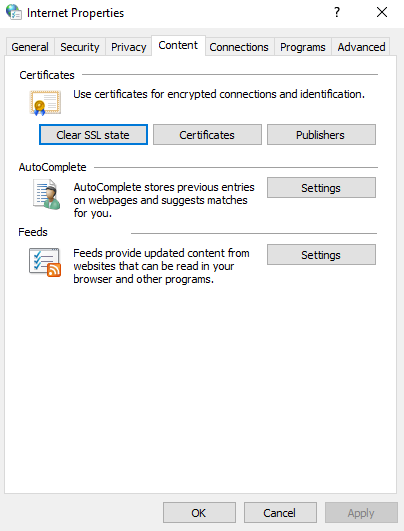
Remember, this workaround applies to Windows and Chrome.
Deactivate VPN and Proxy Servers
Sometimes VPN and proxy servers can work improperly, so you cannot access sites. They can conflict with certificate checks. So, deactivate them and try accessing the site again to see if the error goes away.
Double-Check the URL
If you see a connection error message, checking the URL may prevent it. This is highly likely a typo that prevents you from accessing the site you are looking for.
Different Variations of the ” Connection Not Private” Error in Chrome
As a user, you may see multiple variations of the “Your connection is not private” error in Chrome, shown as error codes. These various error codes are:
- NTE::ERR_CERTIFICATE_TRANSPARENCY_REQUIRED
- NET::ERR_CERT_DATE_INVALID
- ERR_CERT_SYMANTEC_LEGACY
- NET::ERR_CERT_AUTHORITY_INVALID
- NET::ERR_CERT_COMMON_NAME_INVALID
- NET::ERR_CERT_WEAK_SIGNATURE_ALGORITHM
- SSL Certificate Error
- ERR_SSL_VERSION_OR_CIPHER_MISMATCH
Your Connection is Not Private Error Reddit
Various Reddit users have said they can’t resolve the private connection error. However, some users have suggested potential solutions that can help resolve this SSL connection error.
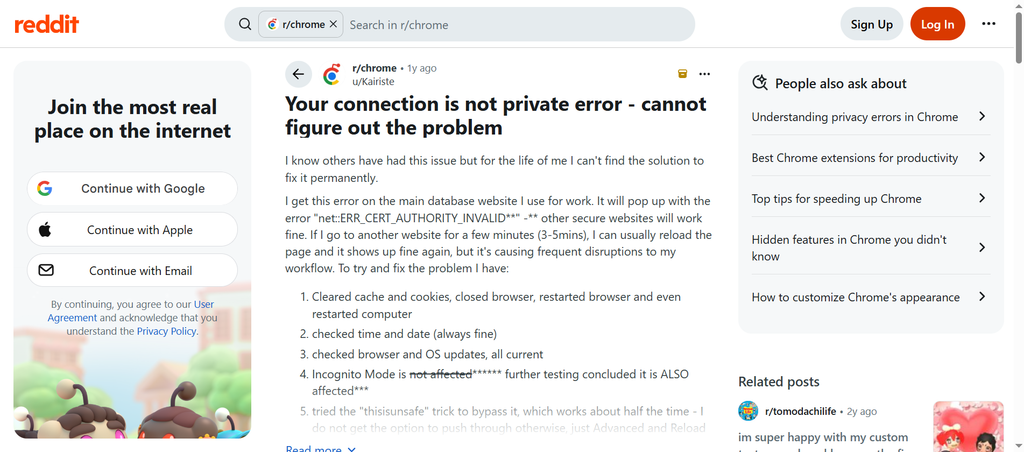
Solutions include reloading the page, trying incognito mode, and more. That said, they have struggled to identify the main reasons why this error occurred in the first place.
Wrapping Up
We hope you enjoy our blog post describing the “Your connection is not private” error in Chrome. These potential workarounds or solutions can help you resolve the “Your connection is not private” issue. Also, check your device’s configuration or the site’s certificate to identify the potential root cause.
Once you identify the cause, resolving the “Your connection is not private” error is straightforward. Otherwise, it remains a cumbersome SSL error until you rectify it.
FAQs
What does the “Your connection is not private” error mean on my Android phone?
The “Your connection is not private” error on mobile occurs when your browser doesn’t authenticate the website’s security certificate or has difficulty creating an encrypted HTTPS connection.
Why is Google Chrome giving me a privacy warning?
Google Chrome shows a “Your connection is not private” message because it cannot verify that your connection to the site is secure.
This happens when Chrome recognizes an issue with the website’s security certificate or your device’s connection.
How do I make my connection private on Chrome?
To keep your connection secure and private in Google Chrome, turn on Always use secure connections to encrypt your web traffic, or use Incognito mode to stop saving local browsing history.
How do I get on a website that says my connection is not secure?
To overcome a “Your connection is not private” or “Not secure” warning in Google Chrome, press the Advanced button on the warning page, then choose Proceed to [website] (unsafe).